Athletes: You're Sitting on a Recruiting Highlight Reel and Don't Even Know It
You downloaded Coach Feedback because your coach told you to. You watch your film. You read the timestamps. Cool.
But here's the thing — you're only using half the app.
There are features built specifically for YOU that most athletes have no idea exist. Features that let you build a highlight reel, create a shareable profile, and put your best moments in front of recruiters, coaches, and anyone who needs to see what you can do.
No editing software. No YouTube channel. No begging someone to make you a highlight tape.
It's already in the app. Let me show you.
1. Tag Your Highlights and Build Your Profile
Every video in your library can be tagged as a highlight.
See that match where you hit a clean double leg? That play where you broke contain and turned the corner? Tag it.
How? Swipe left on any video in your Library. You'll see the option to mark it as a highlight right there.
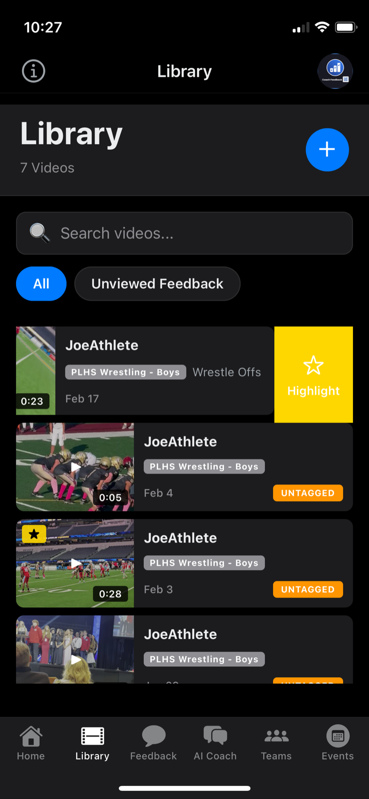
When you tag a video as a highlight, it automatically appears on your public profile inside the app.
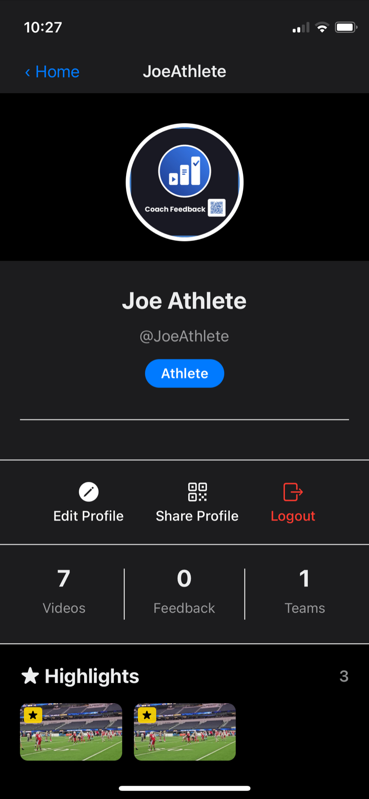
Think about that. Every time you tag a highlight, you're building a recruiting portfolio — one clip at a time. Your best moments, all in one place, ready to show anyone.
No editing. No splicing clips together in iMovie at 11 PM. Just tap "highlight" and it's on your profile.
Do this after every tournament. After every game. Build the reel as you go.
2. Share Your Profile with Recruiters, Coaches, and Anyone
Here's where it gets powerful.
Your public profile isn't just for you to look at. You can share it — with college coaches, recruiters, family, or anyone.
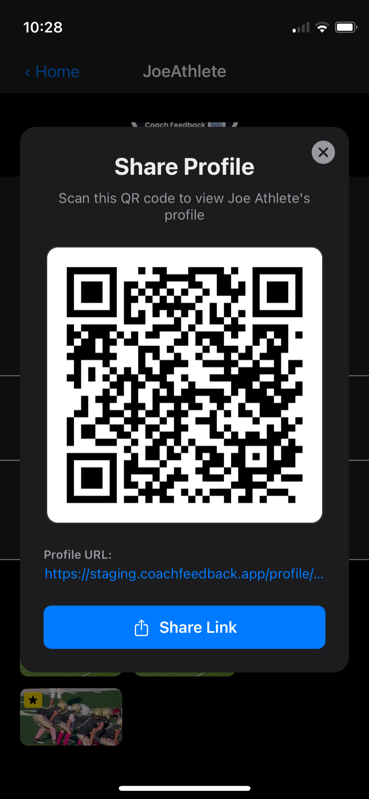
Tap Share Profile on your profile page. You'll see two options:
- QR Code — Someone scans it and they're looking at your highlights instantly
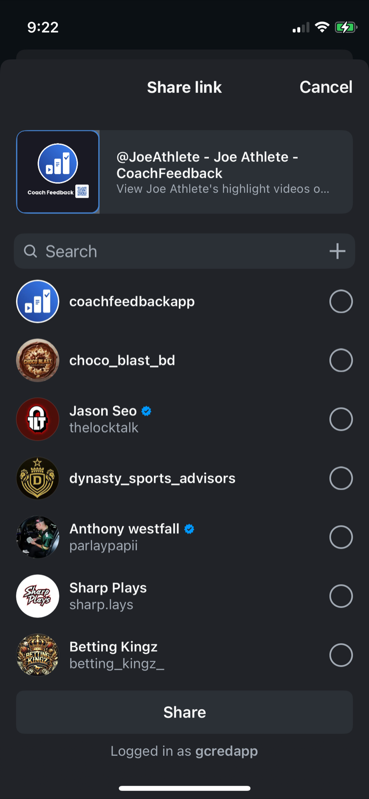
- Share Link — Send it anywhere
Tap Share Link and you can post it directly to Instagram, text it to a college coach, or copy the URL to drop in an email or DM.
And when someone opens that link? They see your highlights in a clean, professional page — right in their browser. No app download required.
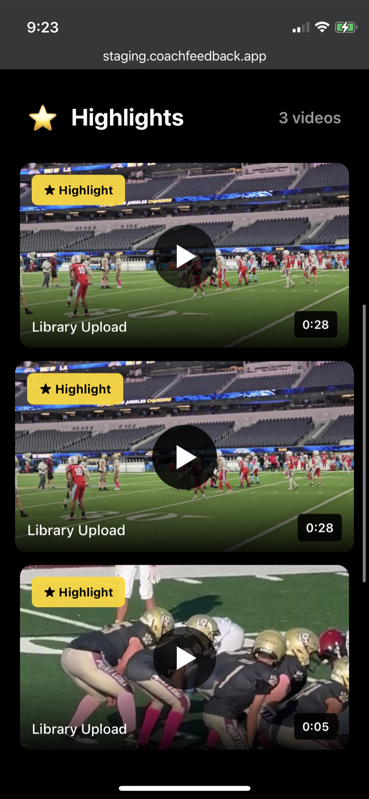
This is your digital recruiting card. A college coach asks for film? Don't scramble. Send them your profile link. Done.
How to Use This for Recruiting
- Put your profile link in your email signature. Every email you send to a college coach now includes your highlights.
- Add it to your Instagram bio. Scouts check social media. Make it easy for them.
- Text it after camps and showcases. Met a coach at a camp? Follow up with your profile link that night.
- Print the QR code. Put it on a business card, a handout, whatever. Hand it out at recruiting events.
You're building a recruiting presence without paying for a highlight service. It's YOUR film. YOUR profile. Share it everywhere.
3. Control Who Sees Your Videos
Not every video should be public. That practice where you got taken down 6 times? Maybe keep that one private.
Every video in your library has privacy controls.
Tap into any video in your library to see its detail view.
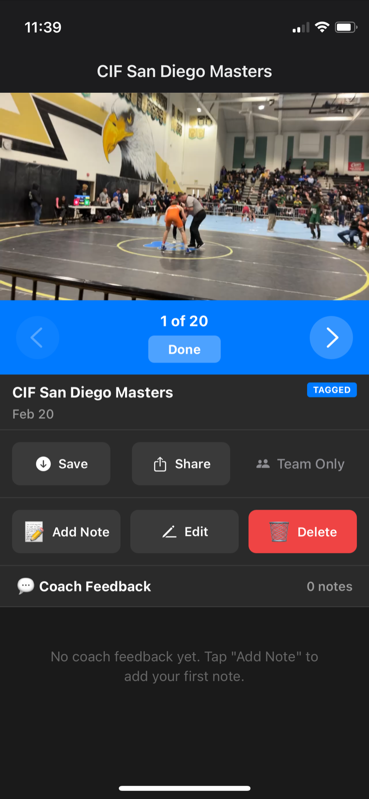
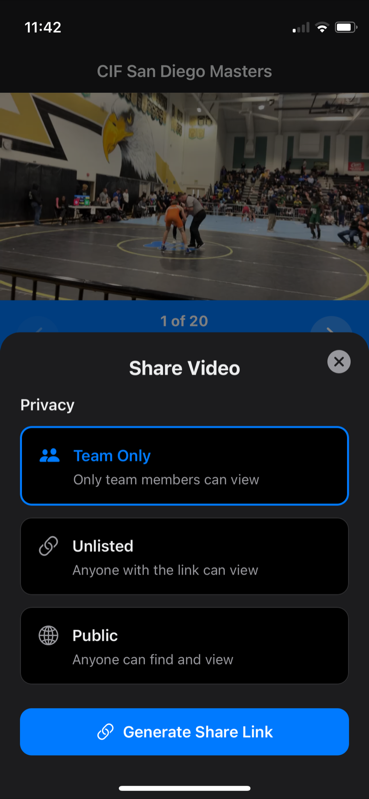
Tap Share and you'll see three privacy options:
- Team Only — Only your coach and teammates can see it (this is the default)
- Unlisted — Anyone with the link can watch, but it won't show on your profile
- Public — It's on your profile and anyone can find it
Why this matters:
- Keep training footage Team Only while you're working on technique
- Set a great match to Public so it shows on your profile
- Use Unlisted when you want to share a specific video with someone without making it fully public
Once you set a video to Public or Unlisted, you'll see options to Share, Copy Link, or Show QR — same sharing power as your profile.
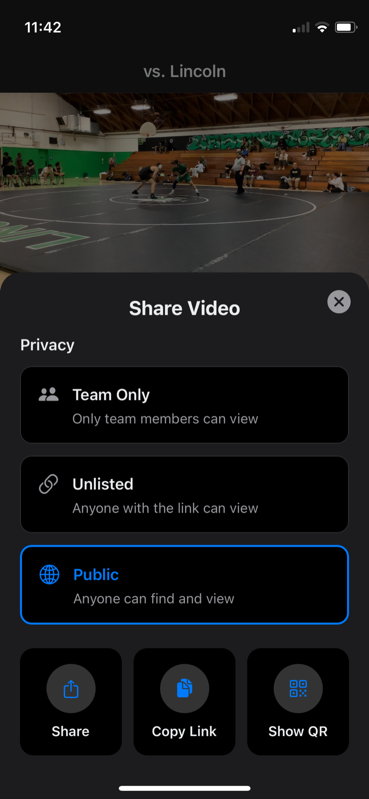
You control the narrative. Only your best work goes public. Everything else stays between you and your coach.
4. See Who's Engaging with Your Videos
When your videos are public, anyone watching can react with emojis — fire, muscle, clap, star, and more — right on the video page.
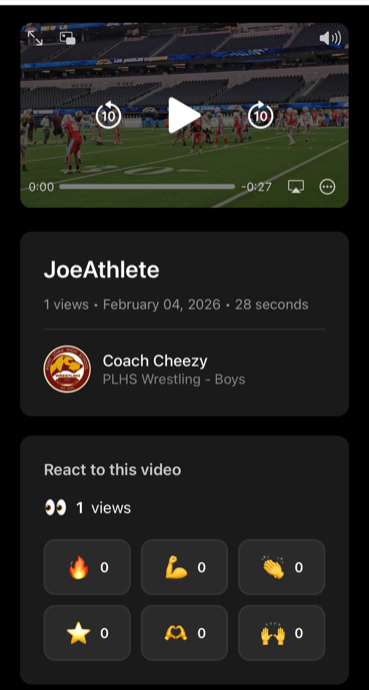
But here's what you might not know: you can see those engagement stats right inside the app. Views, reactions, total engagement — it's all there in your video detail view under Public Engagement.
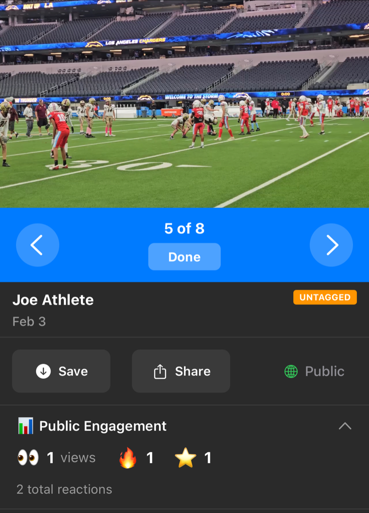
This tells you people are actually watching. Your film is getting seen. That's momentum.
Share your profile, watch the engagement come in, and know that your work is being noticed.
5. Upload Your Own Footage
Your coach records your games and tournaments. But what about:
- Film from a private training session?
- A camp highlight someone else recorded on their phone?
- Footage from a club tournament your school coach wasn't at?
You can upload your own videos directly to the app.
This means you're not limited to what your coach films. Got great footage from any source? Upload it, add it to your library, and tag it as a highlight.
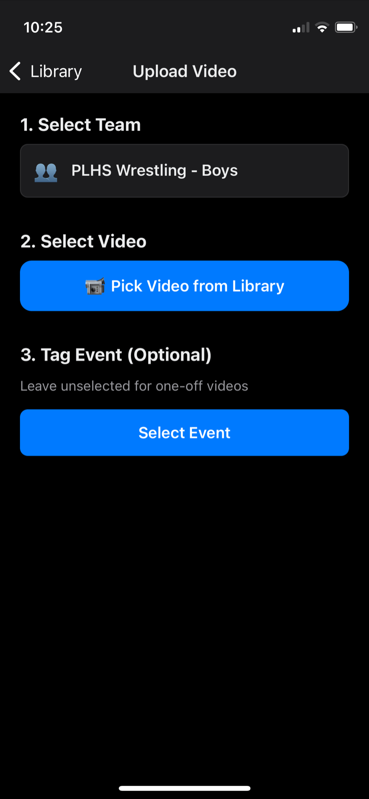
And here's a bonus — when you upload footage to a team library, your coach can add their timestamped feedback to it. So if you film your own practice and want coaching on specific moments, upload it and ask your coach to review it.
You're not waiting around anymore. You're taking control of your own development.
The Big Picture
Here's what most athletes don't realize:
Coach Feedback isn't just a tool for your coach to send you film. It's YOUR platform.
- Tag highlights → Build your reel automatically
- Share your profile → Recruiters see your best work instantly
- Control privacy → Only show what you want to show
- Track engagement → Know when people are watching
- Upload footage → Take control of your content
You're already in the app. You're already watching film. Now use the app to put yourself out there.
The athletes who get recruited aren't always the most talented. They're the ones who make it easy for coaches to find them and watch their film.
Make it easy. Your profile is ready. Start building it.
Quick Start Checklist
Here's what to do right now:
1. Open Coach Feedback and go to your Library
2. Find your 3-5 best videos
3. Tag each one as a Highlight
4. Set those videos to Public
5. Go to your Profile and tap Share
6. Copy your profile link
7. Put it in your Instagram bio, email signature, or text it to a coach
That's it. 10 minutes and you have a recruiting highlight page ready to share.
For Parents
If you're reading this as a parent — share this post with your athlete. Most kids don't explore app features on their own. They use what they're told to use.
Show them how to tag highlights. Help them build their profile. When it's time to reach out to college programs, having a shareable highlight page ready to go is a game-changer.
And remember — athletes use Coach Feedback completely FREE.
Ready to build your highlight reel?
→ Download Coach Feedback
→ Learn More
Athletes FREE. Coaches start at $14.99/month.
Record. Review. Improve.