Getting Started with Coach Feedback: A Quick Guide for Coaches
You downloaded the app. Now what?
This guide walks you through everything — from creating your account to sending your first timestamped feedback.
Let's get you coaching with video in 10 minutes.
Step 1: Download and Sign In
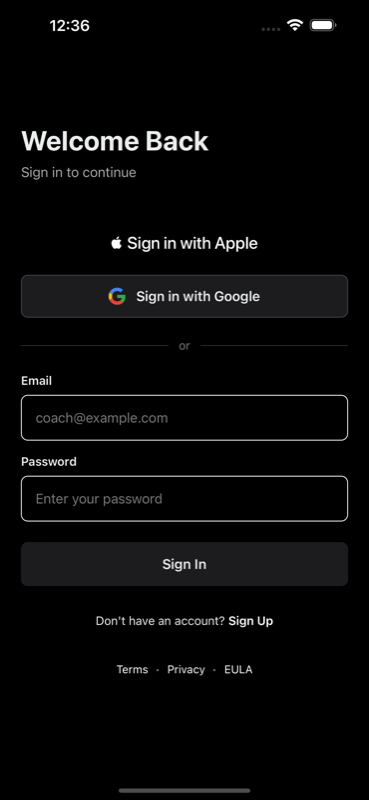
Download Coach Feedback from the App Store on your iPhone or iPad.
Open the app. You'll see options to:
- Sign in with Apple
- Sign in with Google
- Create an account with email
Pick whichever is easiest. Apple and Google sign-in are fastest — one tap and you're in.
Step 2: Create Your Coach Account
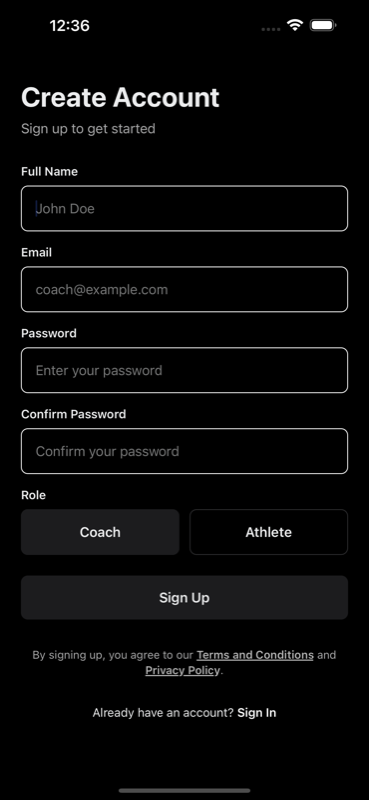
If you're creating a new account, enter:
- Your name
- Email address
- Password
Important: Select "Coach" as your role.
Athletes select "Athlete" — this determines what features you see in the app.
Step 3: Create Your First Team
Once you're in, you'll see the welcome screen prompting you to get started.
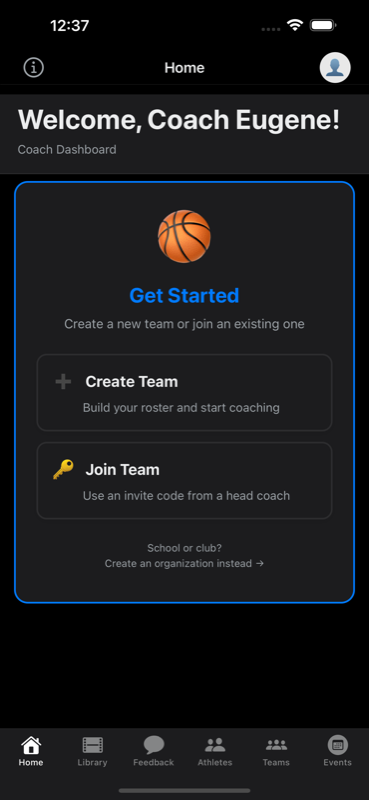
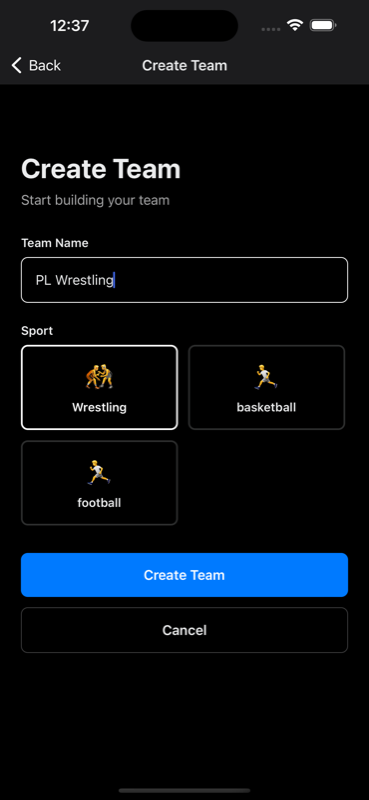
Tap "Create Team" and enter:
- Team Name — e.g., "PL Wrestling" or "Varsity Basketball"
- Sport — Wrestling, Basketball, Football (more coming soon)
Tap Create Team. Done.
Coaching multiple teams? No problem. You can create unlimited teams under one subscription. Your storage is shared across all of them.
Step 4: Choose Your Plan
Before you can start recording, you'll need to subscribe.
Plans:
- Bronze — $14.99/mo — 30 hours of video storage
- Silver — $39.99/mo — 100 hours of video storage
- Gold — $99.99/mo — 500 hours of video storage
One subscription covers ALL your teams — current and future. Pick the plan that fits your coaching load.
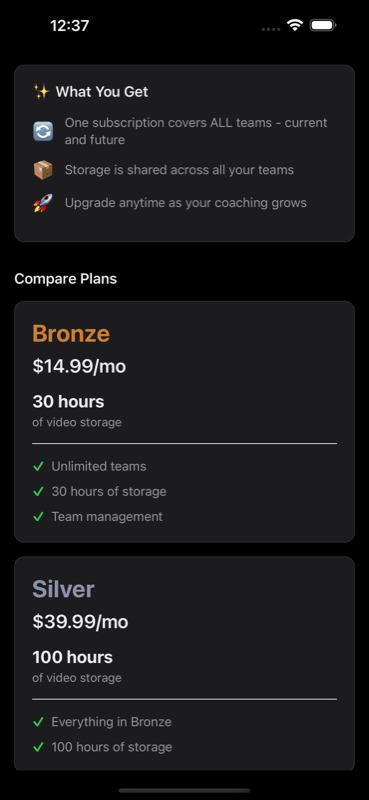
Not sure which plan? Start with Bronze. You can upgrade anytime as your library grows.
Step 5: Invite Your Athletes
Now let's get your athletes on the platform.
Go to Teams → Tap your team → Tap Invite.
You'll see:
- QR Code — Athletes scan it with their phone camera
- Invite Code — e.g., "DBPIXE24" — Athletes enter this manually
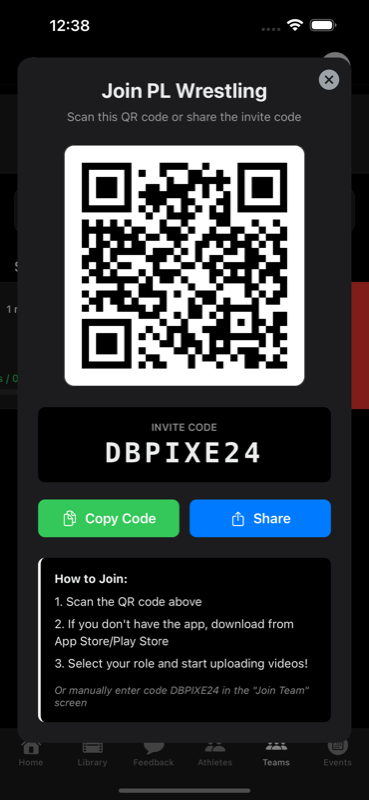
Pro tip: At your next practice, throw the QR code on the gym TV or hold up your phone. Athletes scan, download the app, and they're on your roster in 60 seconds.
Athletes use the app completely FREE. They just need to download, create an account as "Athlete," and join with your code.
Step 6: Create an Event (Optional)
Events help you organize footage by game, practice, or tournament.
Go to Events → Tap the + button.
Enter:
- Event Name — e.g., "vs. San Diego High"
- Event Type — Practice, Tournament, Dual Meet, or Competition
- Date
- Location (optional)
Tap Create Event.
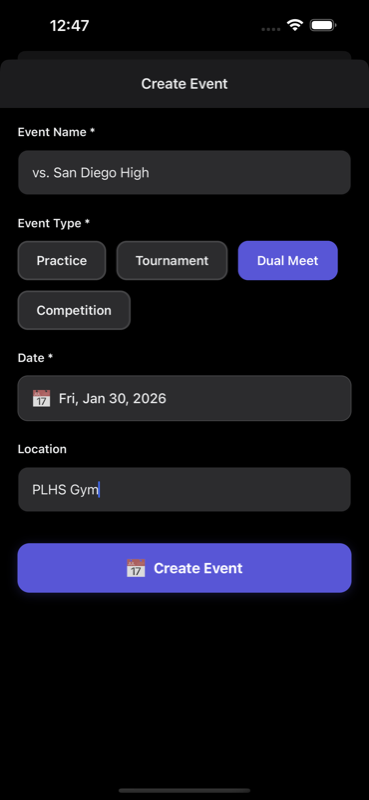
Now when you record, you can tag videos to this event. Makes finding footage later much easier.
Don't want to use events? That's fine — they're optional. Videos still save to your library either way.
Step 7: Record Your First Video
This is where the magic happens.
Tap Record from the home screen (or the Library tab).
Before recording, you'll select:
1. Team — Which team is this for?
2. Athlete(s) — (Optional) Tag specific athletes before you film
Then hit record. Film the action. Stop when done.
The video automatically saves to your Library, already tagged to the athlete and team you selected.
Filming a group drill? You can skip the athlete tag and add it later when reviewing.
Step 8: Add Timestamped Feedback
Go to Library and tap the video you just recorded.
Watch the video. When you see a teaching moment, tap Add Note.
A popup appears showing the exact timestamp — e.g., "At 0:43".
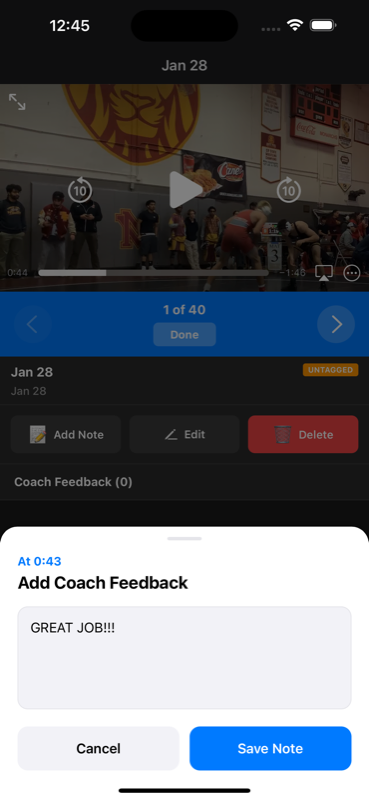
Type your feedback:
- "Great level change here!"
- "See your hips? Too high on this shot."
- "THIS is the footwork I want every time."
Tap Save Note.
Add as many timestamps as you want. Most coaches add 3-7 per video — focus on the moments that matter most.
Step 9: Send Feedback to Athletes
When you're done adding notes, tap Send.
You'll see a confirmation: "Send 1 draft feedback notes to athletes?"
Tap Send Feedback.
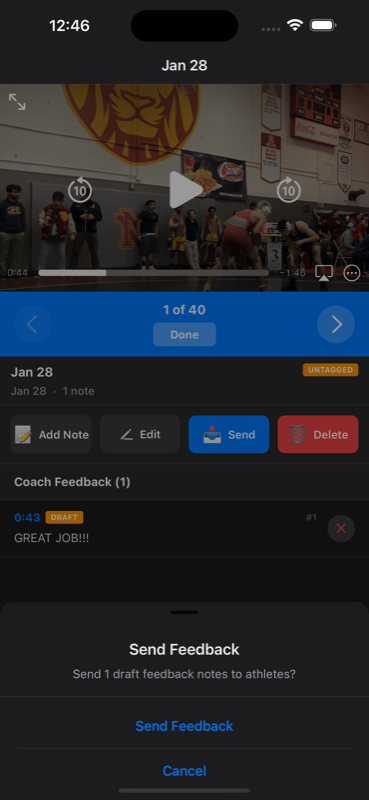
That's it. Your athlete gets a notification. They open the app, tap the timestamp, and jump directly to your coaching point.
No more "watch this 10-minute video and find yourself." They see exactly what you want them to see.
Bonus: Send Direct Feedback
Sometimes you want to send a quick message — no video attached.
Go to Athletes → Find the athlete → Tap the chat bubble icon.
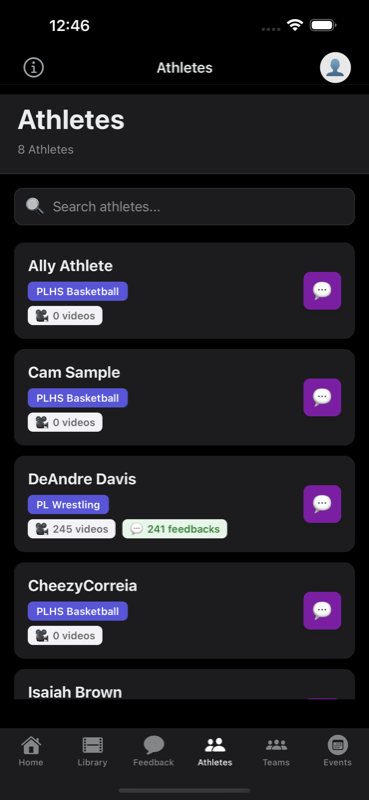
Type your message:
- "Great effort at practice today. Keep it up!"
- "Remember: hands up, chin down. See you Thursday."
- "Proud of how you competed this weekend."
Tap Send.
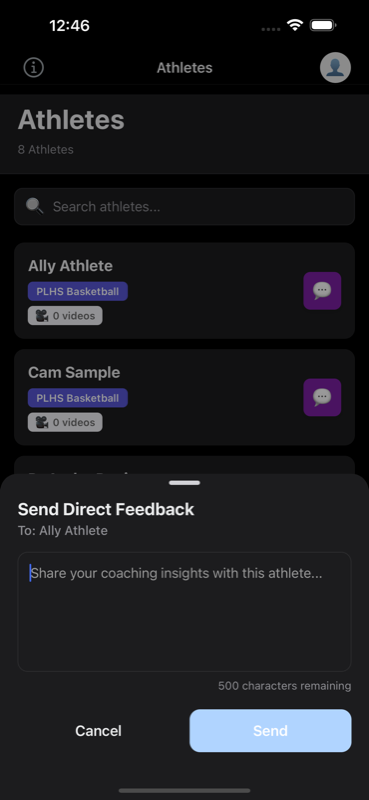
This is perfect for motivation, reminders, or quick coaching notes between sessions. Build that coach-athlete connection.
Quick Reference
| Task | Where |
|---|---|
| Create a team | Teams → Create Team |
| Invite athletes | Teams → Your Team → Invite |
| Create an event | Events → + button |
| Record video | Home → Record |
| Add feedback | Library → Video → Add Note |
| Send feedback | Library → Video → Send |
| Direct message | Athletes → Chat bubble icon |
Common Questions
How do athletes join?
Athletes download Coach Feedback (free), create an account as "Athlete," and enter your invite code or scan your QR code. They're instantly on your roster.
Can I record without tagging an athlete?
Yes. Tag the team, skip the athlete selection, and assign athletes later when reviewing in your Library.
Do athletes pay anything?
No. Athletes use Coach Feedback completely FREE. Only coaches subscribe.
Can I coach multiple sports?
Absolutely. Create separate teams for each sport. One subscription covers all of them.
What if I run out of storage?
Upgrade your plan anytime. Or delete old videos you no longer need — storage is recalculated immediately.
Start Coaching
You've got the app. You've got this guide. Now go film your next practice.
Record. Add timestamps. Send feedback. Watch your athletes improve.
It's that simple.
Download Coach Feedback:
→ App Store
→ Learn More
Athletes FREE. Coaches start at $14.99/month.
Record. Review. Improve.